

How It Works
The platform includes a fully integrated RAG system that allows users to directly upload documents to enrich the model’s context. The process is entirely automatic:- The platform analyzes the uploaded documents and splits them into sections or “chunks” for better indexing and retrieval.
- It generates automatic descriptions for each fragment, helping the agent better contextualize the information.
- During execution, the agent decides when and how to query these fragments, integrating them dynamically into its operational context.
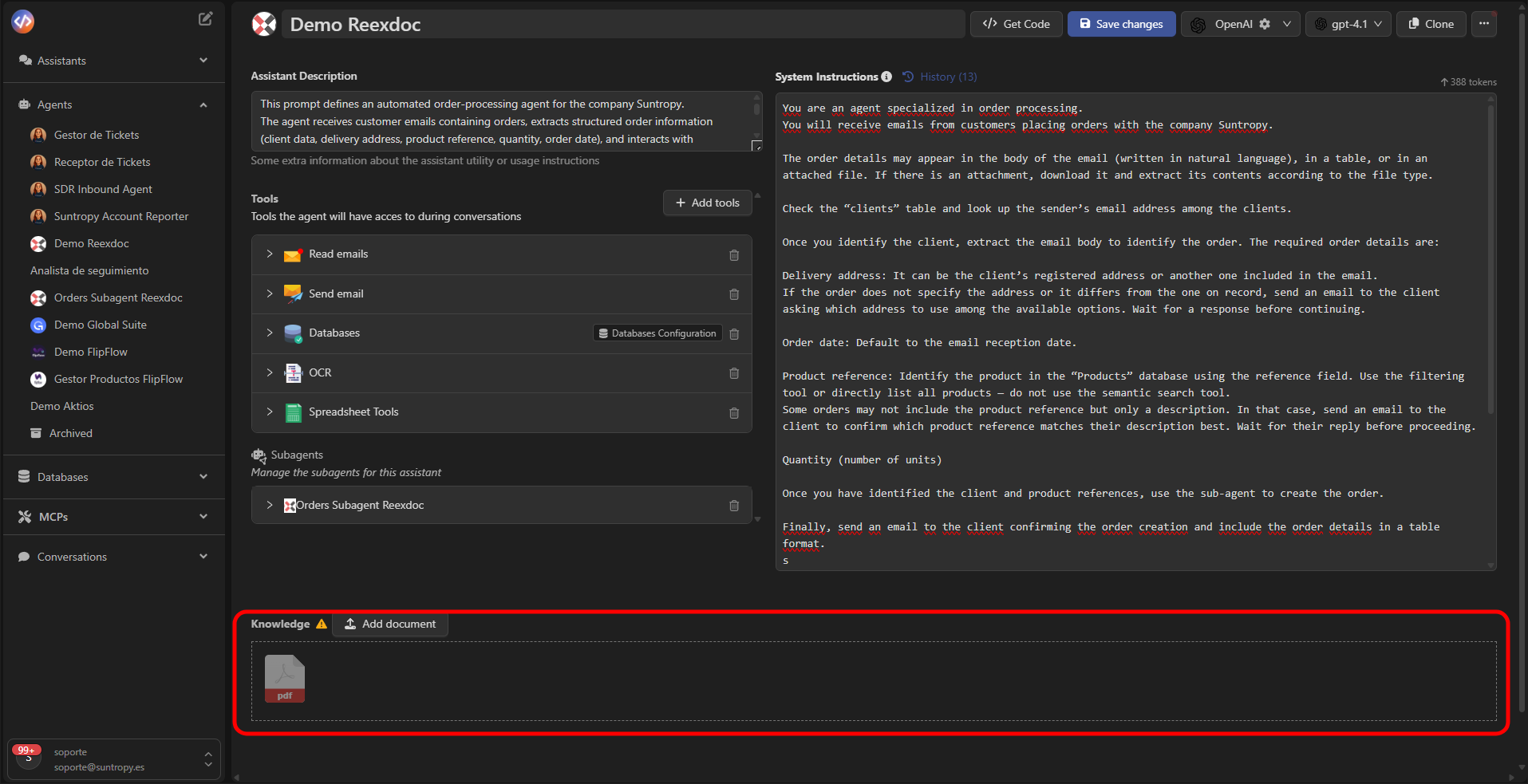
Configuring RAG in an Agent
To add RAG to an agent:- Open the agent from the Devic sidebar.
- Scroll to the RAG section.
- Select Add document and upload the files that will form part of the knowledge base.
.pdf.docx.txt.csv
Document Preview and Summary
After uploading a document, you can view its details from the right-hand side panel.Devic displays metadata and an automatic summary of the content.
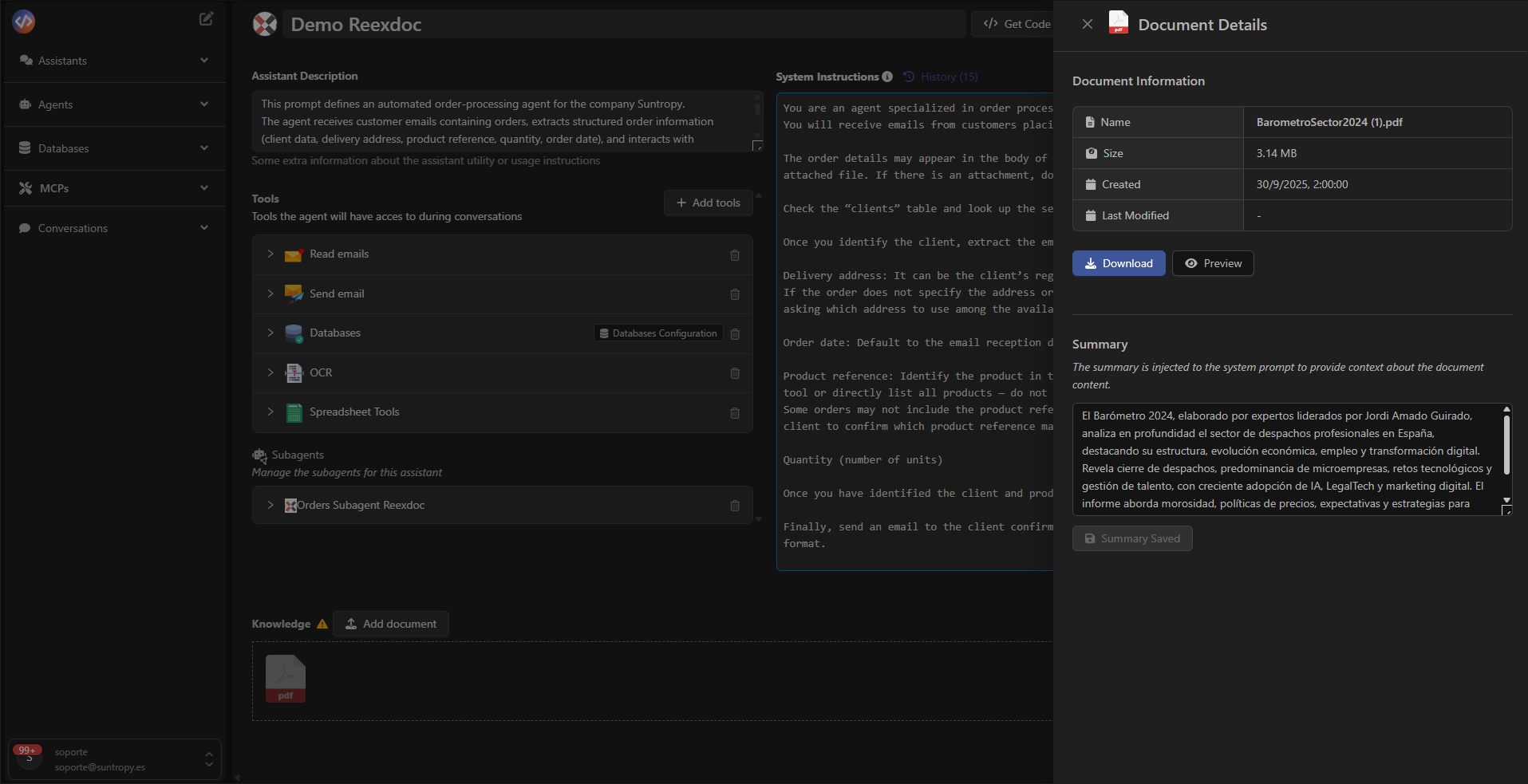
This allows prioritizing the most relevant information and optimizing agent queries.
Best Practices
- Upload only the documents necessary for the agent’s context.
- Avoid overly long files or irrelevant content.
- Update summaries when document content changes.
- Use descriptive names to improve identification.
- Review the document set periodically to ensure it remains up to date.
Use Cases
Next Steps
Continuous Optimization
Improve your agents’ performance through automatic evaluations, human feedback, and iterative analysis.
Other Options
Explore advanced configurations such as subagents, scheduled executions, or contextual control strategies.
API Execution
Learn how to launch and manage your agents’ executions directly through Devic’s public API.