

Overview
After configuring and validating your tools, the final step is to publish the MCP so it can be used by agents, assistants, or external environments. To do this, click the Publish button located at the top right of the panel.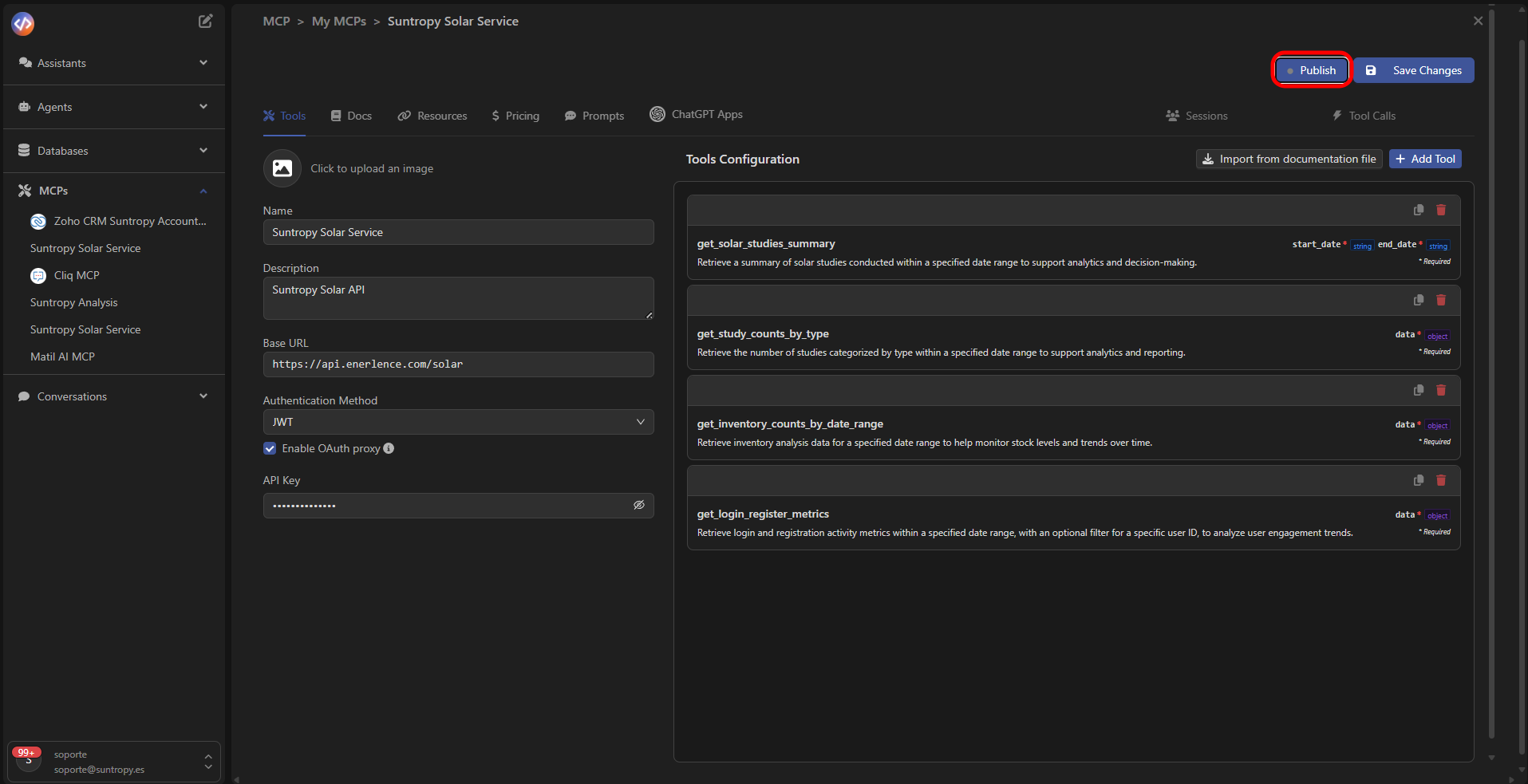
MCP Visibility
When selecting Publish, a configuration window opens where you can choose who will have access to the MCP server. Available options:-
Private — Only accessible by you:
The MCP will only be accessible from your environment or by your agents.
Ideal for internal integrations or testing environments. -
Public — Accessible to everyone:
Makes the MCP available to any environment that supports the MCP protocol, such as ChatGPT or other Devic instances.
This option generates a public access URL for the server.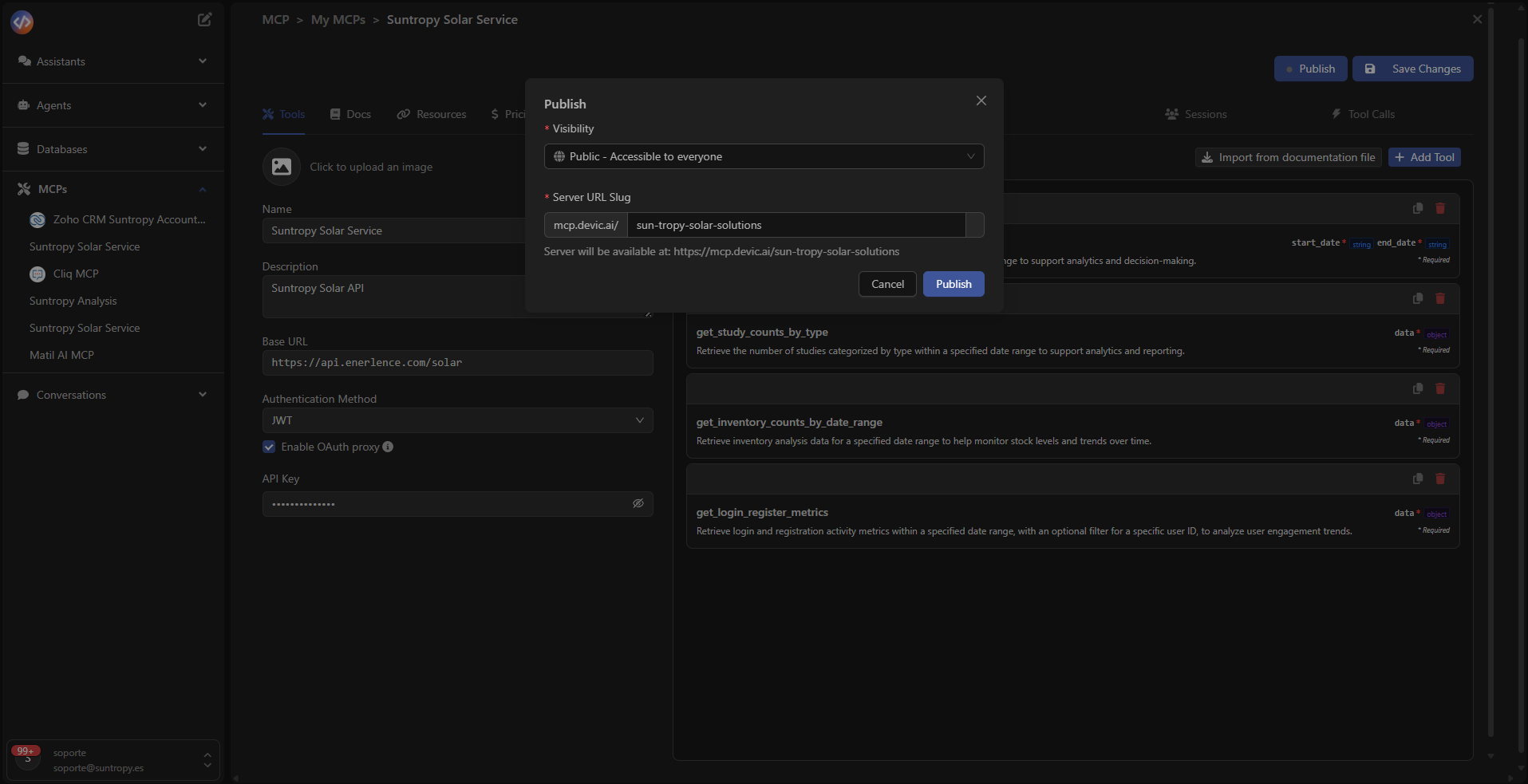
Generated URL
During publication, Devic automatically creates a URL under the domain:https://mcp.devic.ai/<mcp-name>
That address becomes the endpoint from which agents or external systems can invoke the MCP tools.
Publication complete
Once the publication is finished, you will receive a success notification and the MCP link will appear at the top of the panel.
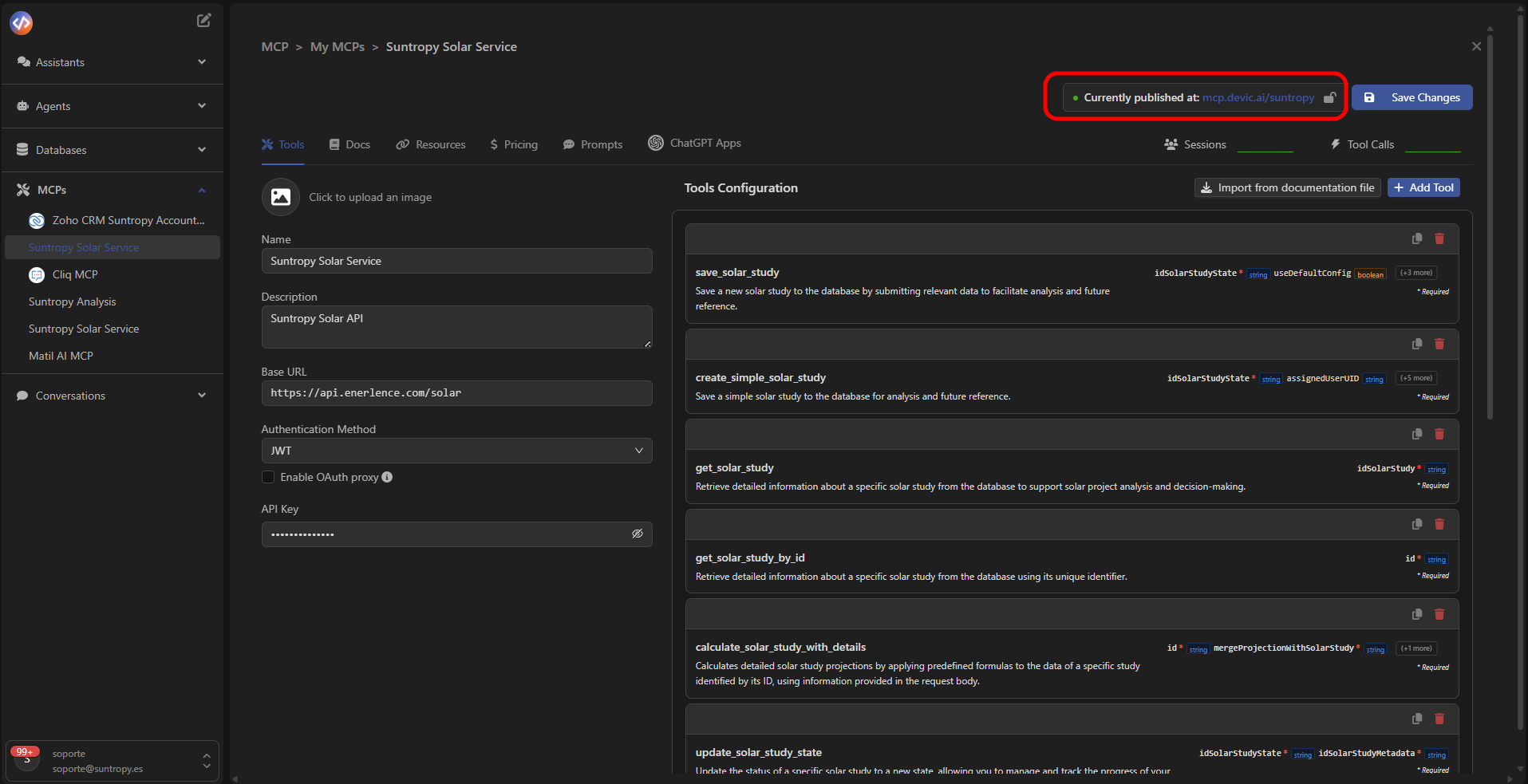
After publishing
Once active, the MCP:- Is hosted on Devic’s infrastructure.
- Can be consumed by agents and assistants.
- Can be exposed to LLMs such as ChatGPT, Claude, Cursor, etc.
- Updates automatically if you modify its tools or configuration.
Next step
Learn how to execute and monitor sessions of your active MCPs.